How to Change Your Account Email
Overview
This guide explains how to change the email address associated with your InterLIR Global account.
To successfully update your email, you must have:
- Two-Factor Authentication (2FA) enabled on your account
See: How to manage Two-Factor Authentication - Access to your current email address (you will receive a verification code)
- Access to the new email address (you will confirm the update there as well)
Steps to Change Your Account Email
1. Open Account Settings
- Log in to your InterLIR Global account.
- Click your profile icon in the top-right corner.
- Select My account.
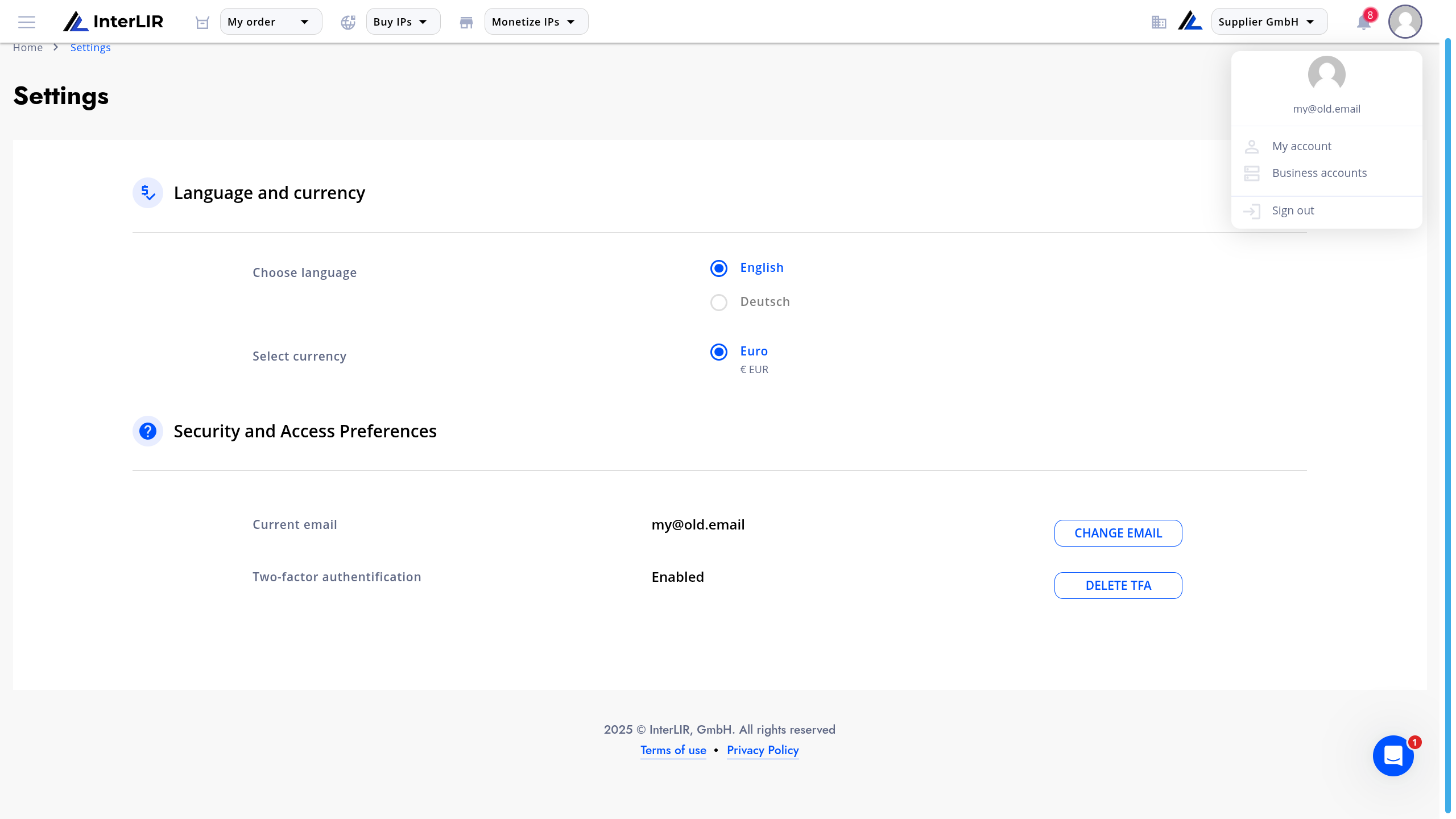
In the Security and Access Preferences section, click CHANGE EMAIL.
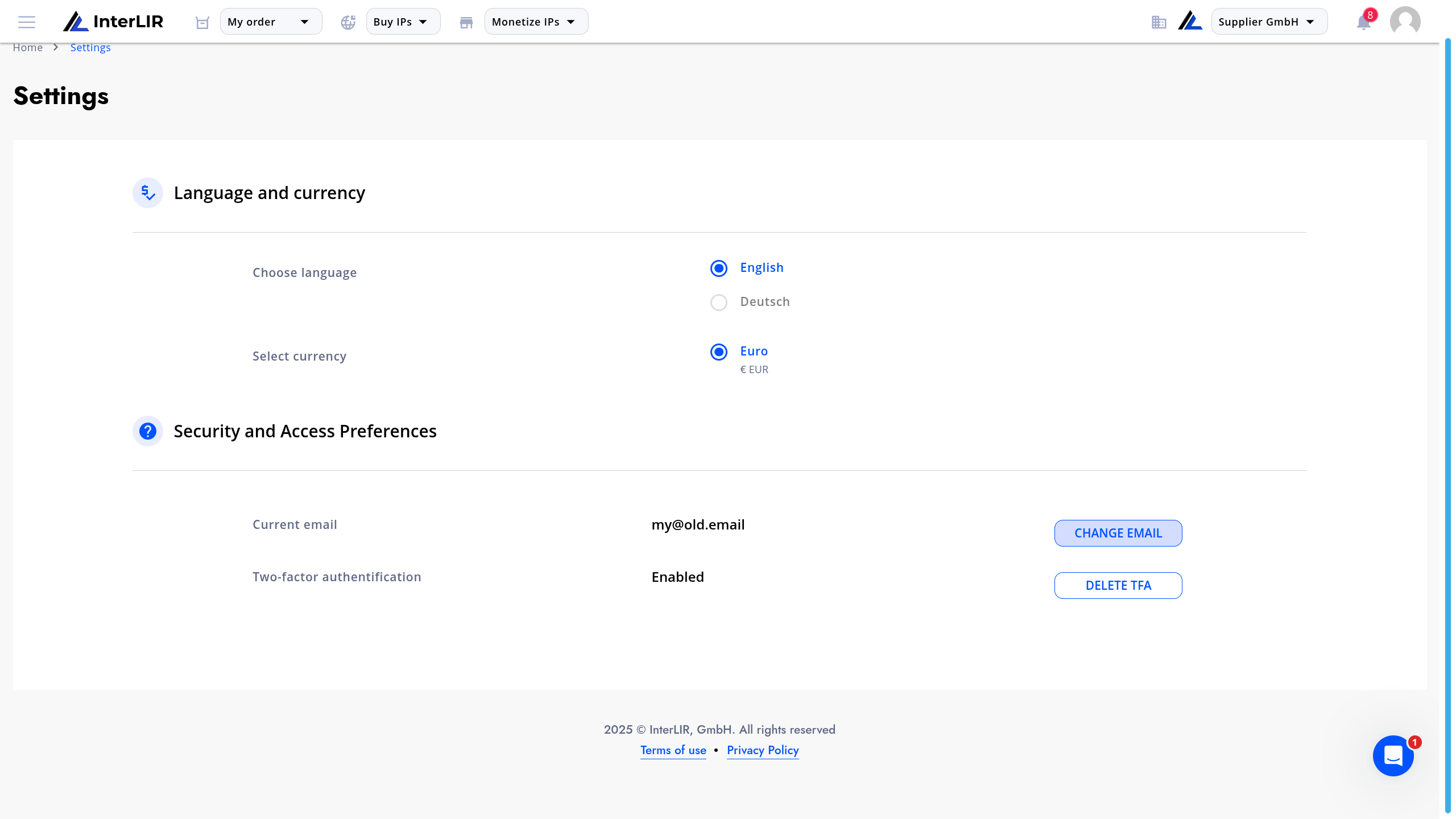
2. Enter the New Email Address
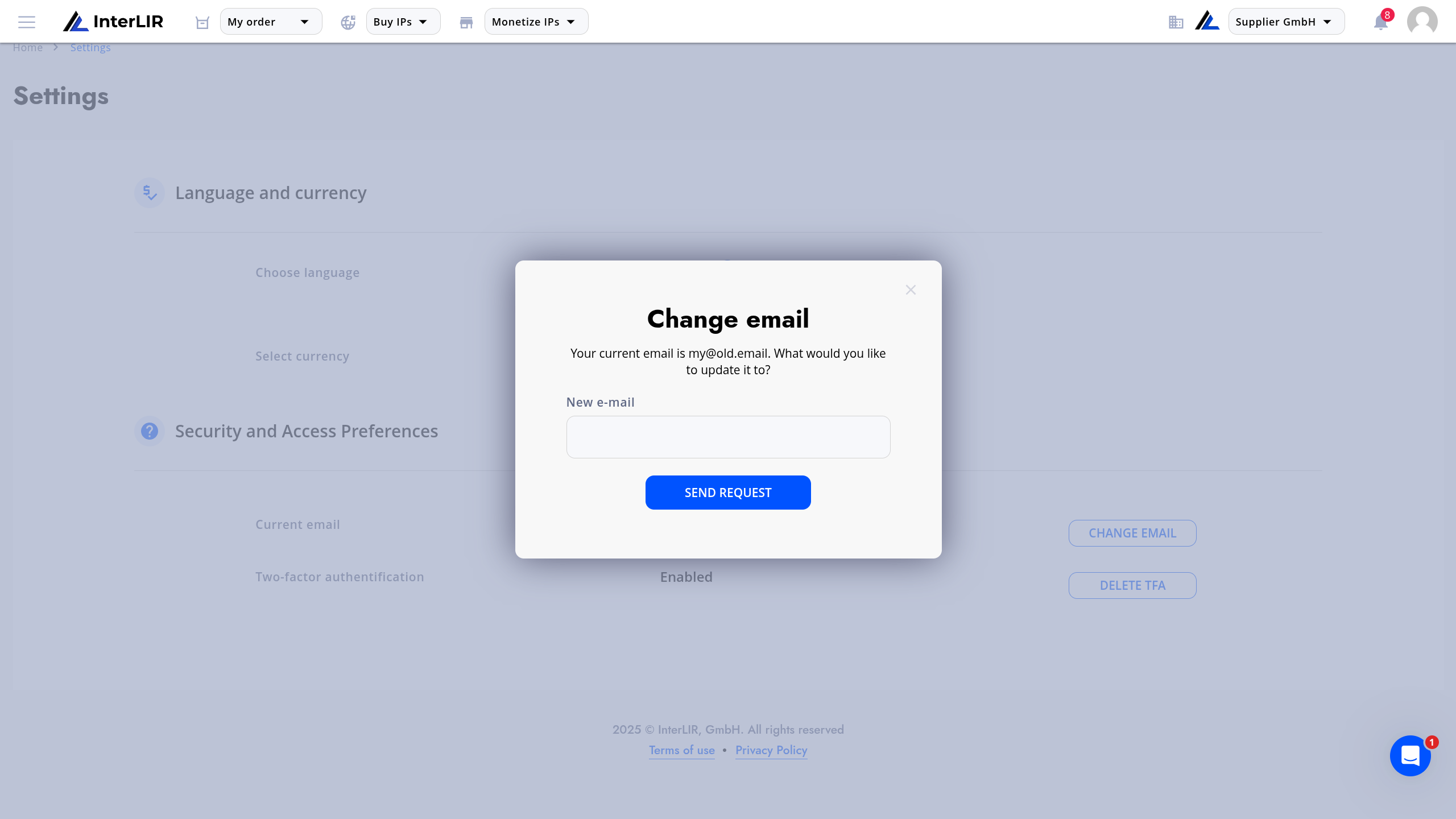
A modal window will appear.
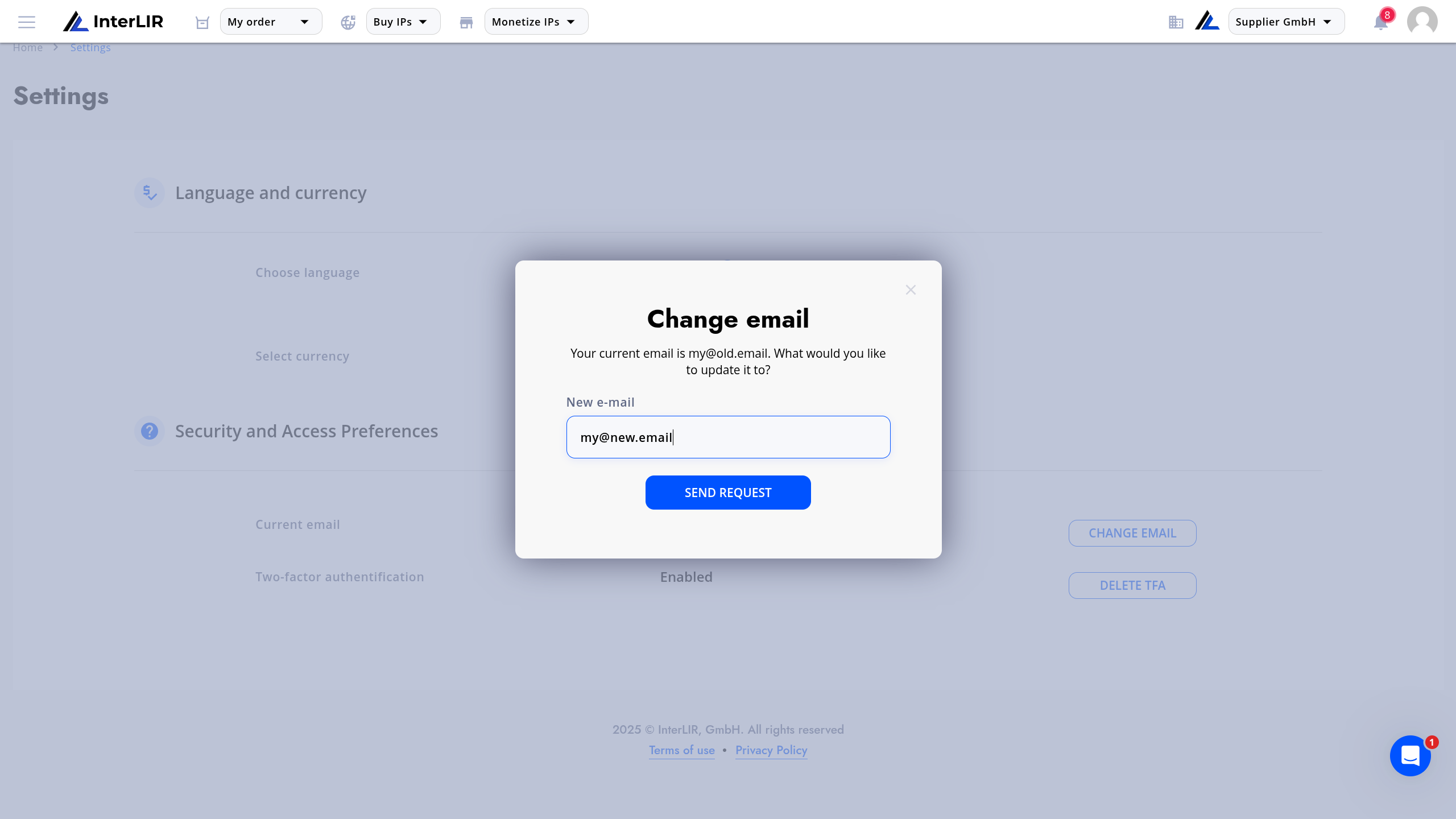
- Enter your new email address.
- Click SEND REQUEST.
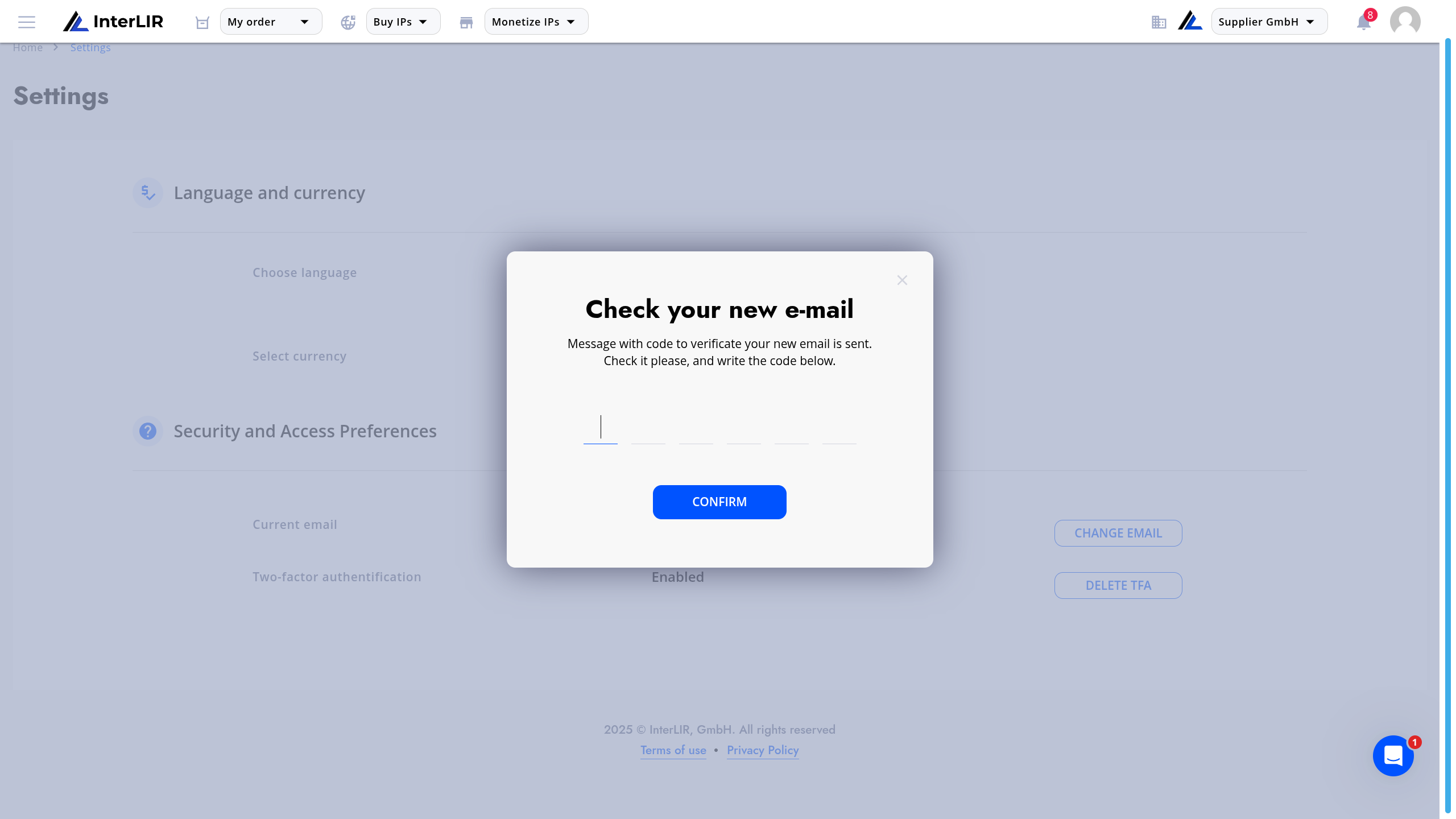
3. Confirm the Email Verification Code (New Email)
A code will be sent to your new email address.
- Open your new inbox.
- Copy the 6-digit verification code.
- Enter it in the confirmation window.
- Click CONFIRM.
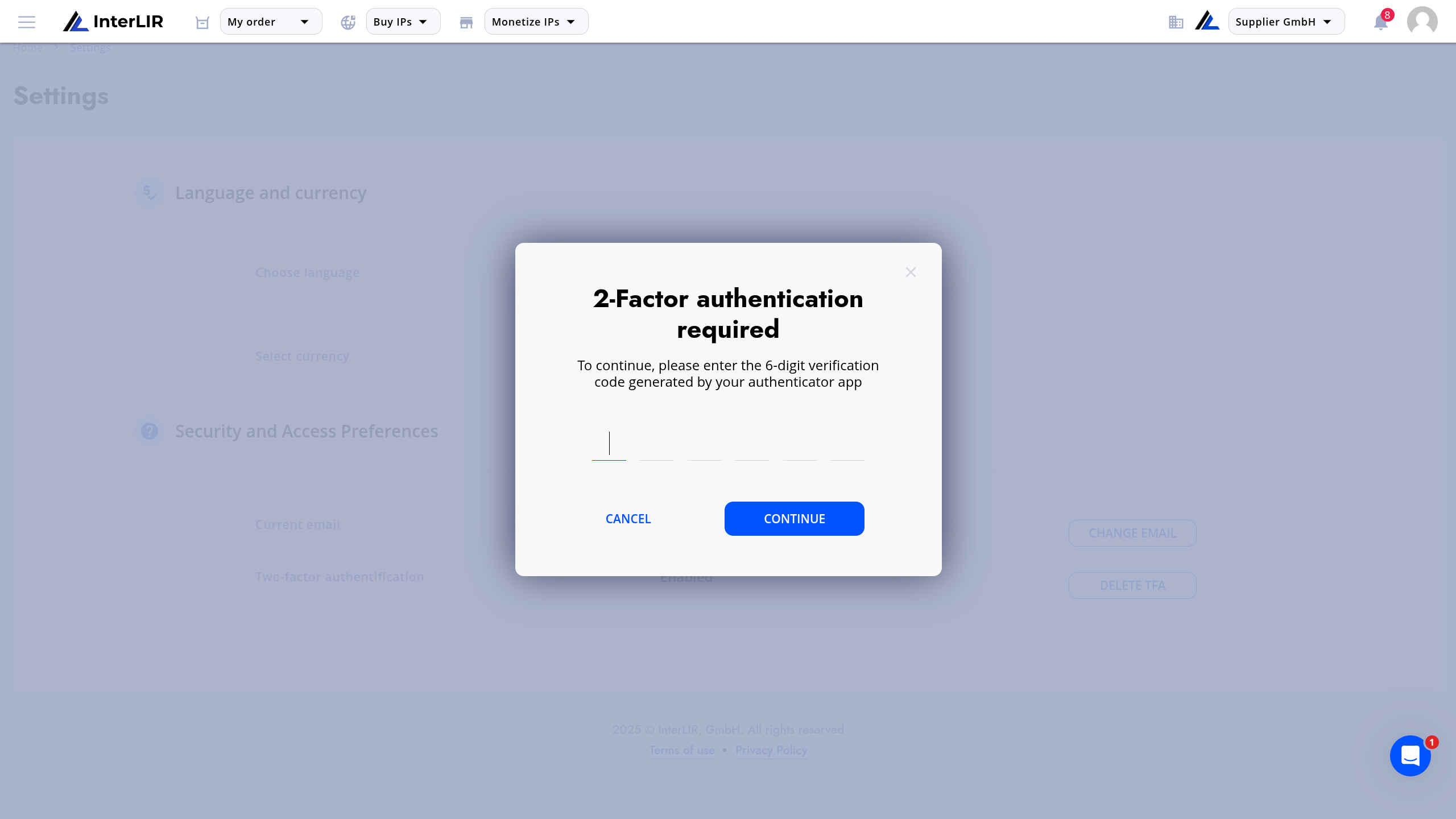
4. Verify the Change with 2FA
Because email is a critical security parameter, the system requires confirmation via Two-Factor Authentication.
- Open your authenticator app.
- Enter the 6-digit TFA code.
- Click CONTINUE.
5. Email Successfully Updated
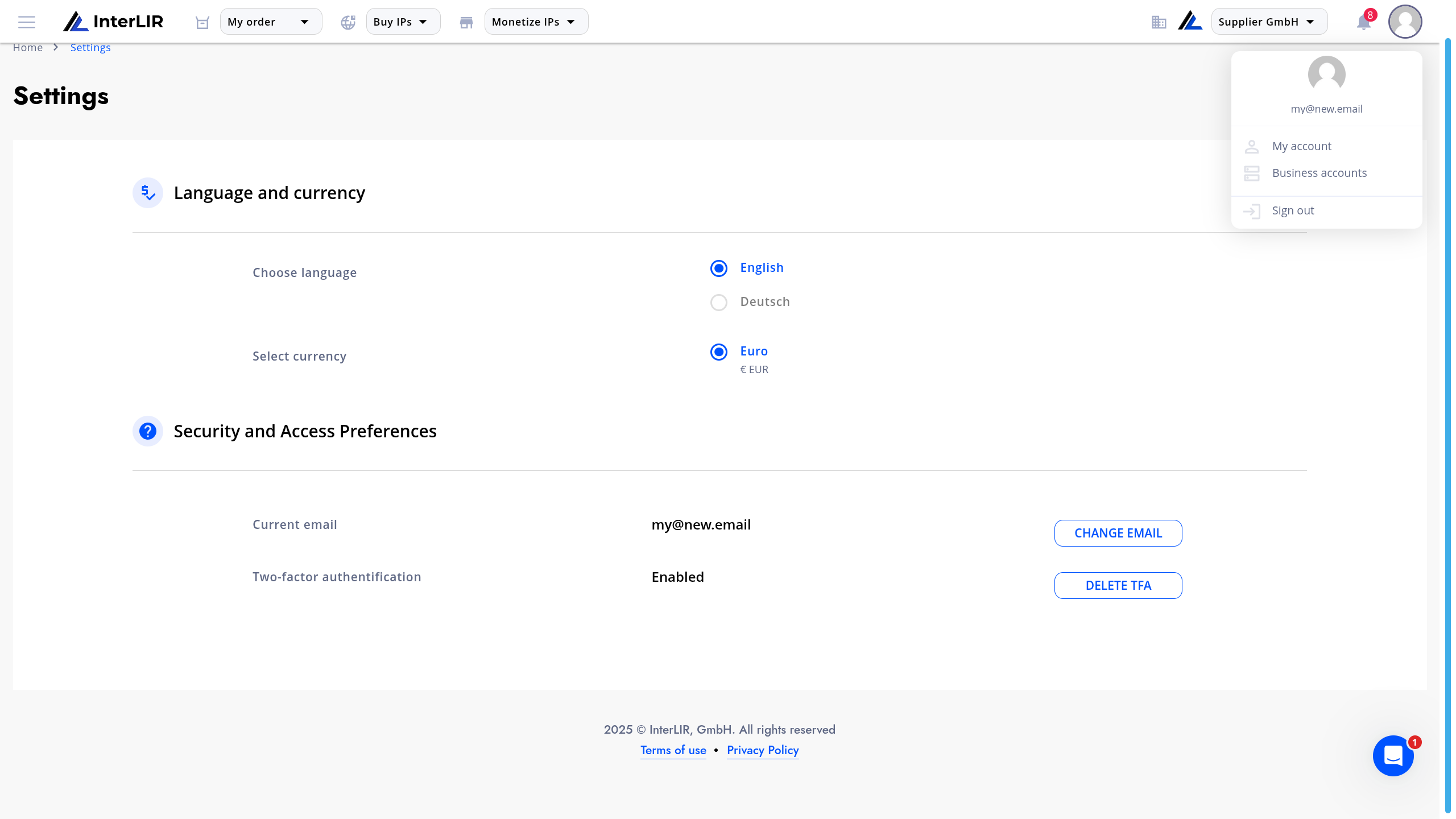
After successful verification, the new email will appear in your account settings.
You can now use the new email address to log in.
Troubleshooting
Did not receive verification code?
Check spam/junk folders in both old and new email inboxes.2FA is disabled?
Follow the guide to enable it first:
How to manage Two-Factor Authentication